When working with multiple ad accounts, affiliate marketers have to deal not only with platform restrictions but also with additional security systems. One of them is Cloudflare Turnstile. This technology checks whether actions on a website are performed by a real person or by an automated script. If such a check appears while accessing a site, the automated ad launch process can stop and manual intervention may be required.
NitroSolver helps pass these checks automatically. With its API, you can solve Cloudflare Turnstile challenges automatically and receive tokens that keep your scripts running.
However, solving CAPTCHAs is only one part of automation. Managing accounts correctly so that ad platforms don't link them to each other is just as important. That's why affiliate marketers use antidetect browsers. In this article, we'll take a look at Dolphin Anty and the features it offers.
Why Should Affiliate Marketers Use an Antidetect Browser?
In affiliate marketing, multiaccounting is necessary to manage several ad accounts at the same time. It also helps reduce the risks associated with account bans: if one account is suspended, the others can keep working.
On the other hand, ad platforms try to make sure that every user is unique and to prevent unfair advantages gained through special software. To do this, they track the devices and browsers users log in from. If multiple accounts share the same cookies, IP address and browser fingerprint, security systems can link these accounts together. This can lead to additional verification, restrictions or account bans.
Antidetect browsers let you create separate profiles, each with its own settings. This way, every profile looks like a different device.
Dolphin Anty can change more than 20 device and browser parameters that make up a digital fingerprint. When you create a profile, the browser automatically generates a set of characteristics. You can then change them with the New Fingerprint button or adjust parameters one by one manually.
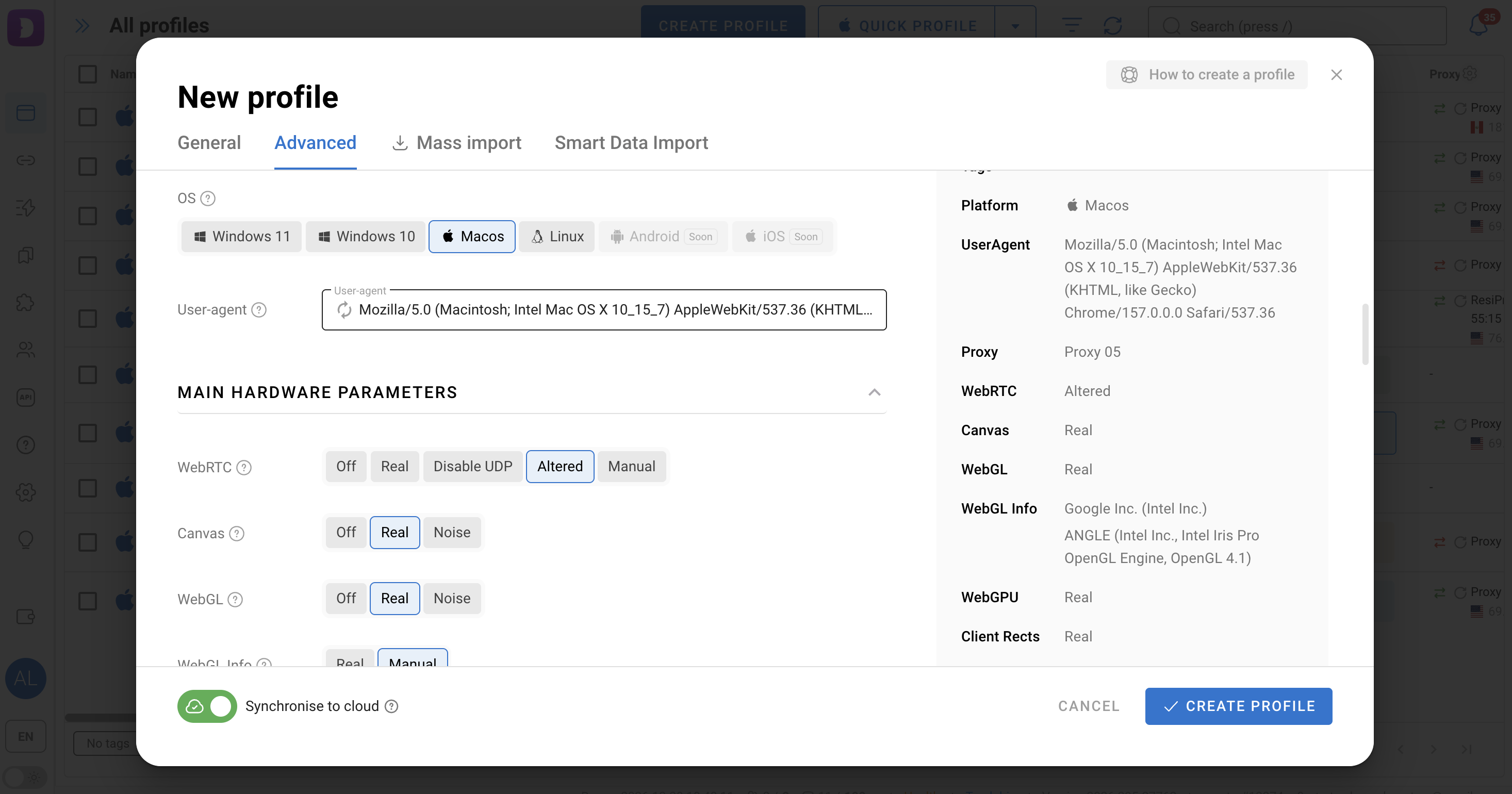
The main configurable parameters are:
- User-Agent: information about the browser, its version and the operating system.
- WebRTC: network connection settings that could allow websites to find out the user's real IP address.
- Canvas: data generated by the browser when rendering graphics.
- WebGL: a technology for rendering 2D and 3D graphics that gives websites information about the device's graphics capabilities.
- WebGL Info: details about the graphics card manufacturer and model, as well as graphics drivers.
- Time zone and language: browser settings that can be matched to the location of the proxy in use.
- Geolocation: the location of the device.
- CPU and memory: the number of processor cores and the amount of RAM shown to websites.
- Screen: the device's screen resolution.
- Media devices: information about connected cameras, microphones and speakers.
- Ports: settings for access to network ports. Dolphin Anty can block certain ports to limit the additional information websites can obtain.
Fingerprint changes are made at the browser engine level, without injecting JavaScript code. The developers also recommend not changing hardware related parameters unless necessary, because inconsistent values can make a fingerprint look unnatural and attract the attention of security systems.
Proxy Settings
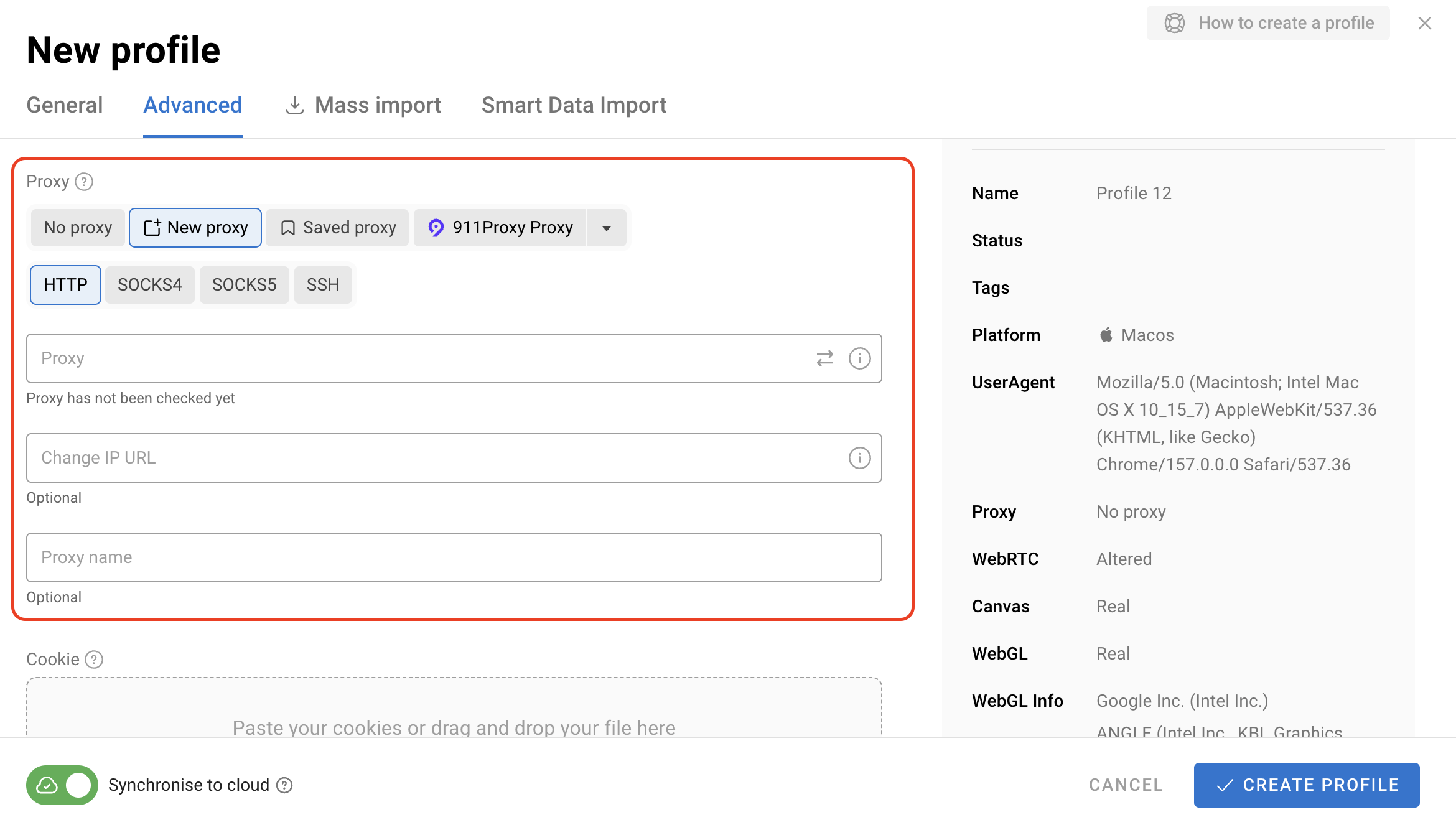
Proxies change the IP address a profile uses when connecting to websites. In Dolphin Anty, you can add proxies in two ways.
1. When creating a profile: Select the option to add a new proxy in the corresponding field, enter the details provided by your proxy provider and check the connection.
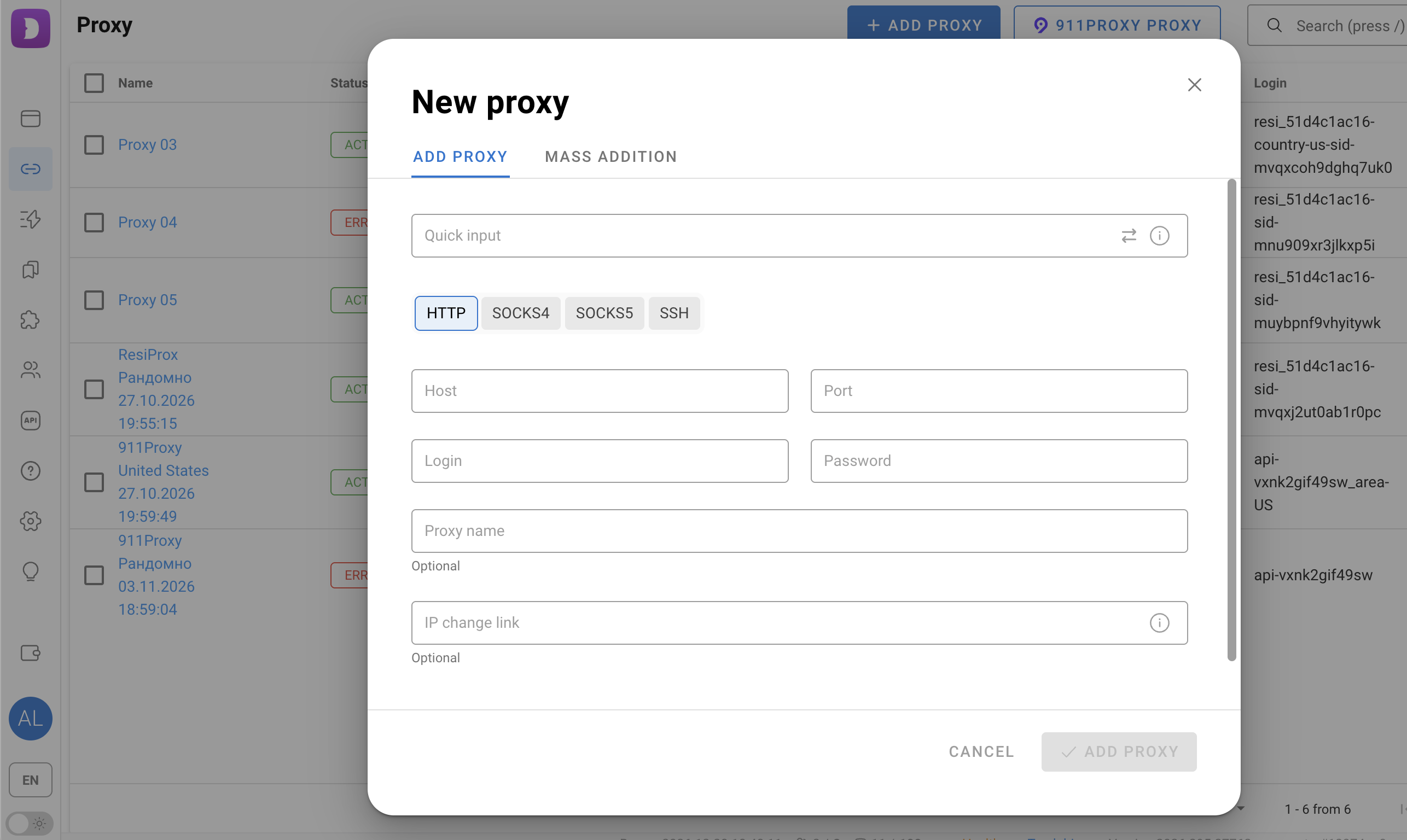
2. From the Proxy section: Here you can add proxies without assigning them to specific accounts. You can enter your provider's details one by one or add them in bulk using the Bulk Add option. Added proxies then appear in your saved proxy list.
When creating a profile, you can assign a proxy from this list by clicking the Saved Proxies button.
If you want to distribute proxies across multiple profiles automatically, select the profiles and click Change Proxy in the bulk actions menu.
Profile Management
As the number of ad accounts grows, keeping the profile list organized becomes more important. Dolphin Anty offers several tools for this:
- Folders let you group profiles by ad platform, project or other criteria.
- Statuses help you track what stage each account is at. You can create custom statuses such as Ready, In Progress or Banned and assign different colors to them.
- Tags let you classify profiles by different criteria. You can add multiple tags to a profile based on information such as location, traffic source or purpose.
- Notes let you save additional information about a profile, such as login details or account specific instructions.
- Search and filters help you quickly find profiles by name and other attributes.
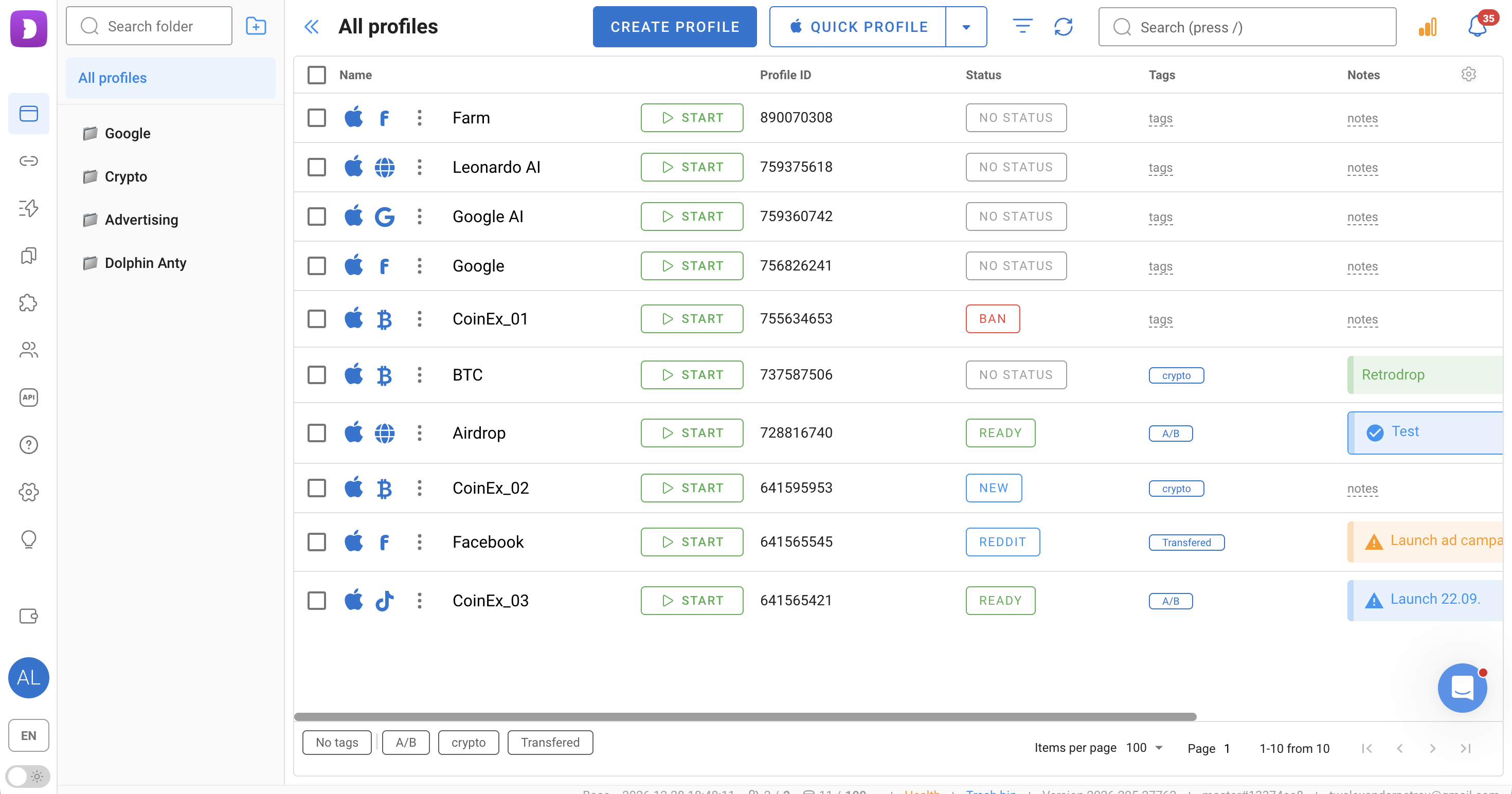
When creating a profile, you can choose a profile type: Facebook, Google, TikTok, Crypto or a general profile not tied to a specific platform. Profile types let you configure common settings for different account categories.
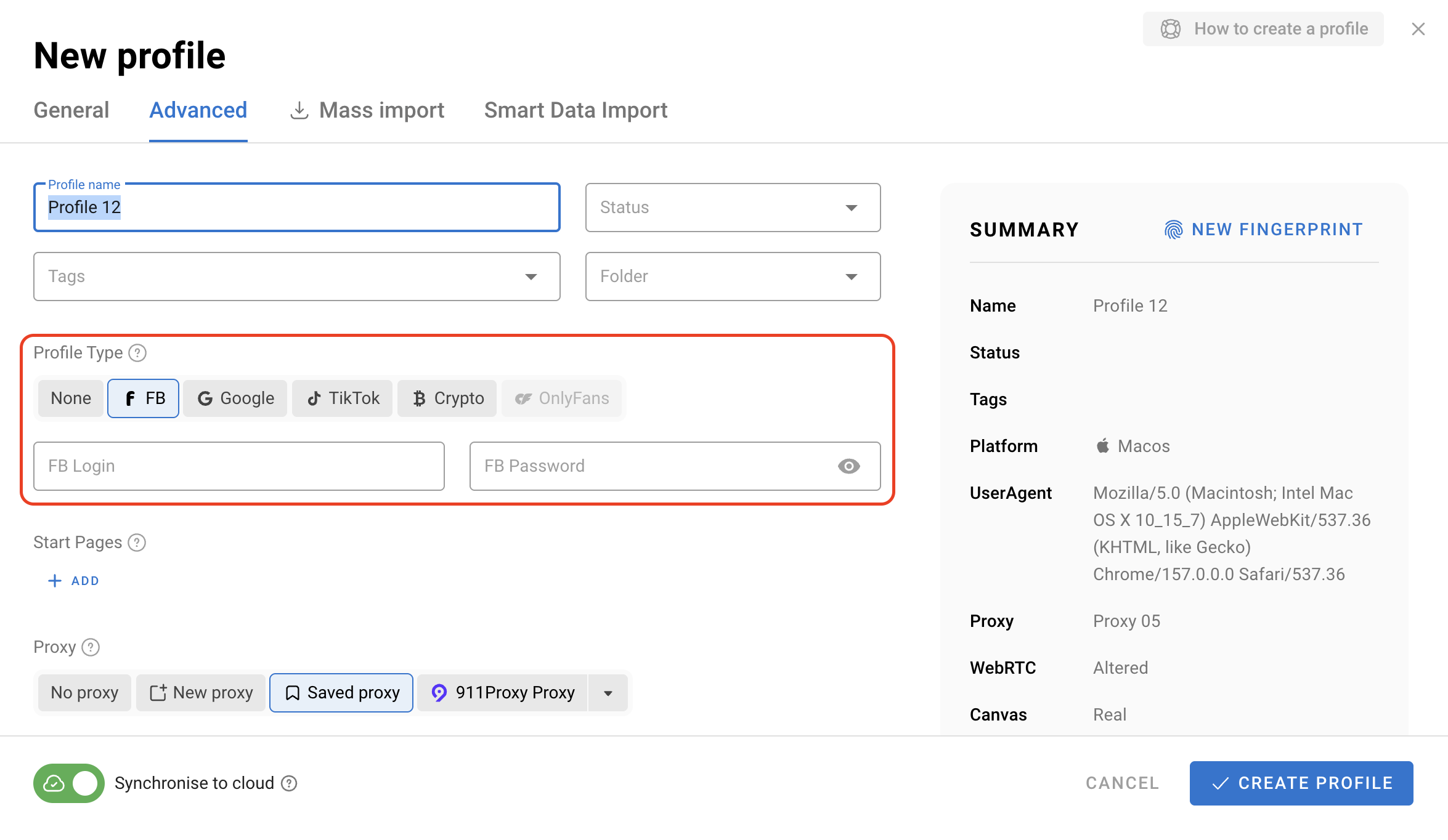
Dolphin Anty also adds useful bookmarks based on the selected profile type. You can create your own sets of extensions, bookmarks and start pages and assign them to specific profile types.
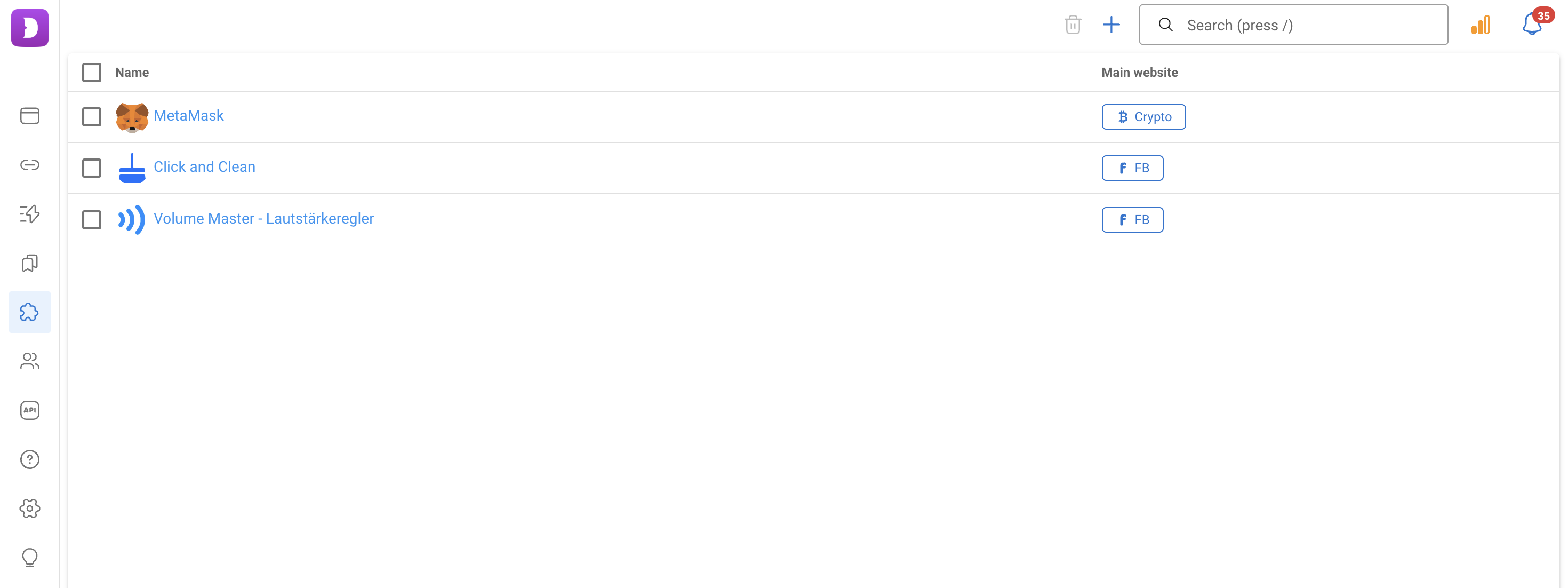
For example, you can prepare one set for Facebook, another for Google and a third for TikTok. The relevant items are automatically added to all new profiles of the selected type, so you don't have to configure everything manually every time you create a profile.
Automation
Dolphin Anty includes several tools that help automate repetitive tasks.
Synchronizer
Synchronizer lets you control multiple open profiles at the same time. Select the profiles, choose the one you'll use as the main profile and start synchronization. Actions performed in the main profile, such as clicking, typing and scrolling, are repeated in the other selected profiles.
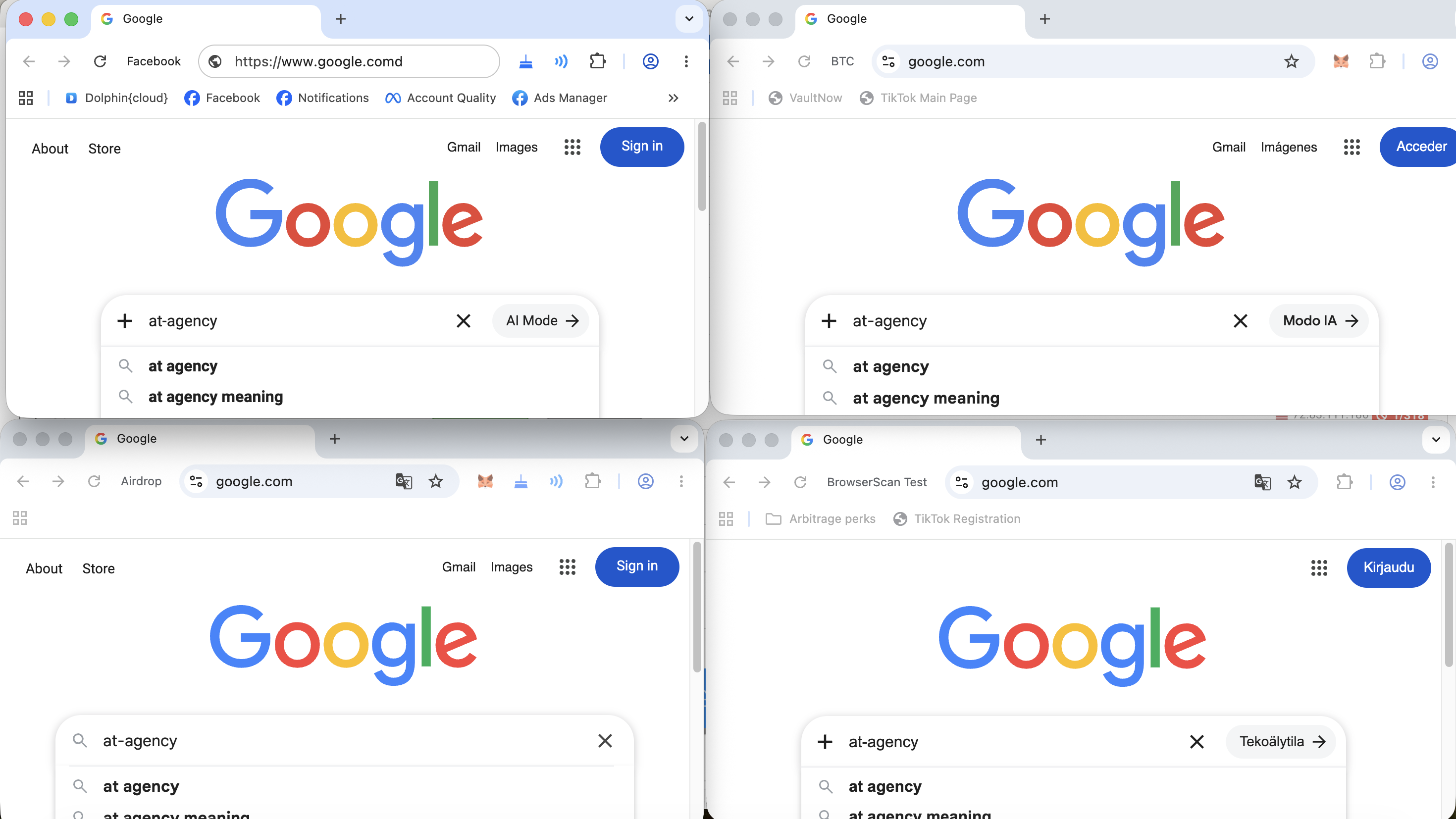
This way, instead of switching between multiple windows, you only need to work in the main profile.
Scenarios
Scenarios let you create sequences of actions that the browser performs automatically. The built in visual editor works with blocks that you can add and connect in any order. Available actions include mouse and keyboard input, page navigation, form filling, file operations, variables and browser extensions.
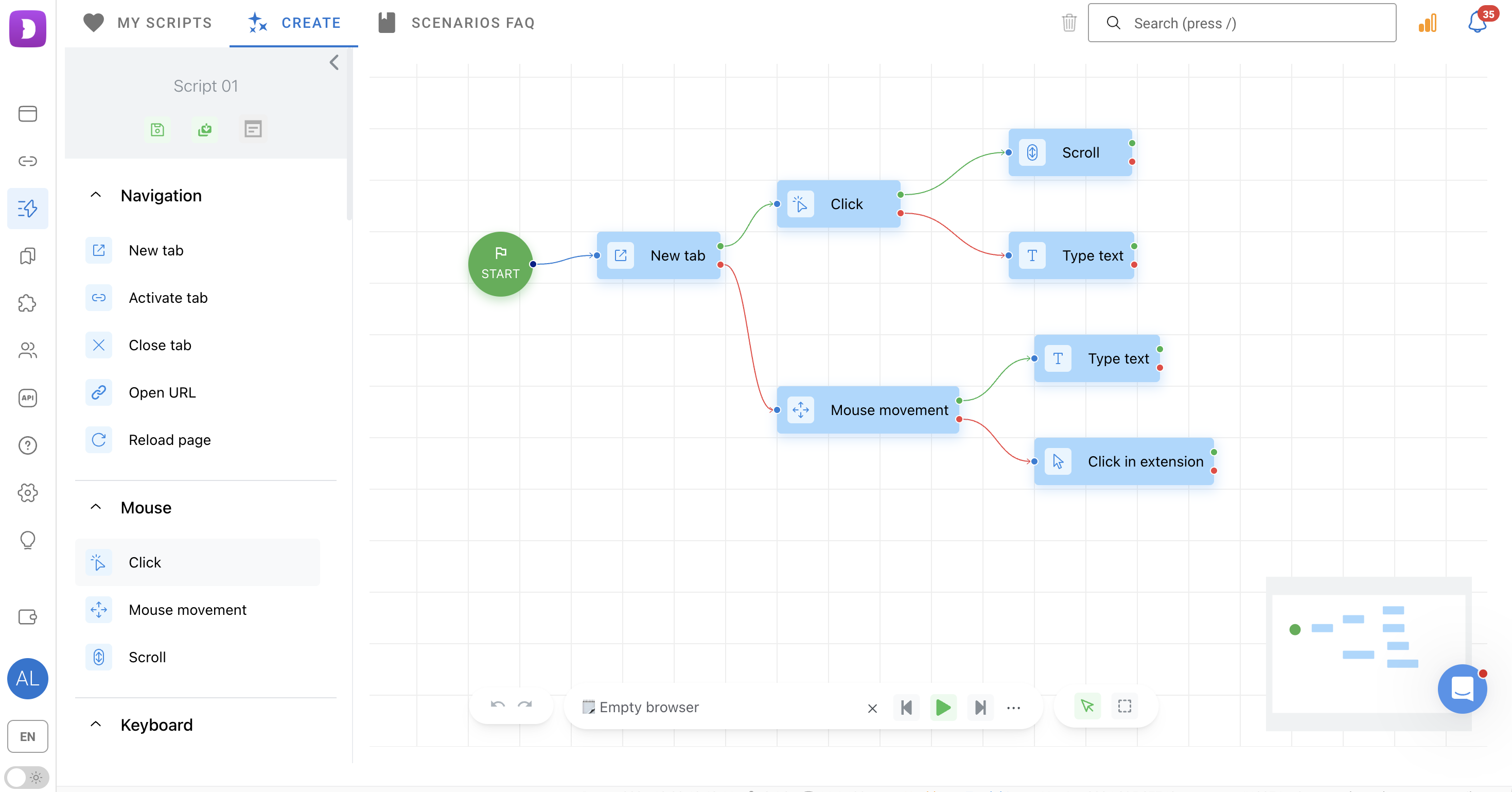
Once you've created a scenario, you can run it in one or more profiles. For example, you can use it to automate logins, repetitive tasks in ad dashboards and other routine operations.
Cookie Robot
Cookie Robot automates visiting websites and collecting cookies for a profile. All you need to do is provide a list of URLs to visit. This way, you can build up the profile's browsing history in advance.
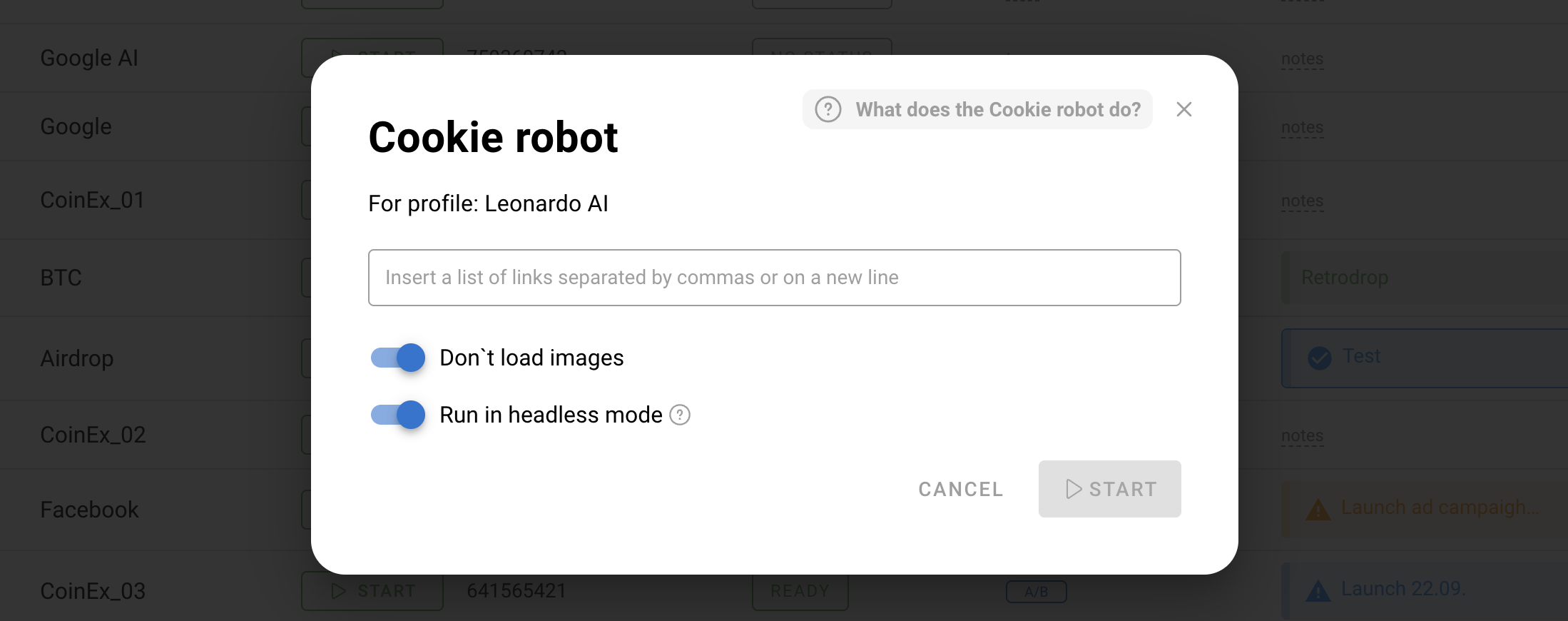
To save bandwidth, you can disable image loading or enable headless mode to run the process without displaying the browser window.
API
Dolphin Anty has a local API that lets you connect the browser to external applications and custom automation tools. For example, you can start and stop profiles programmatically and integrate tools such as Selenium, Puppeteer and Playwright.
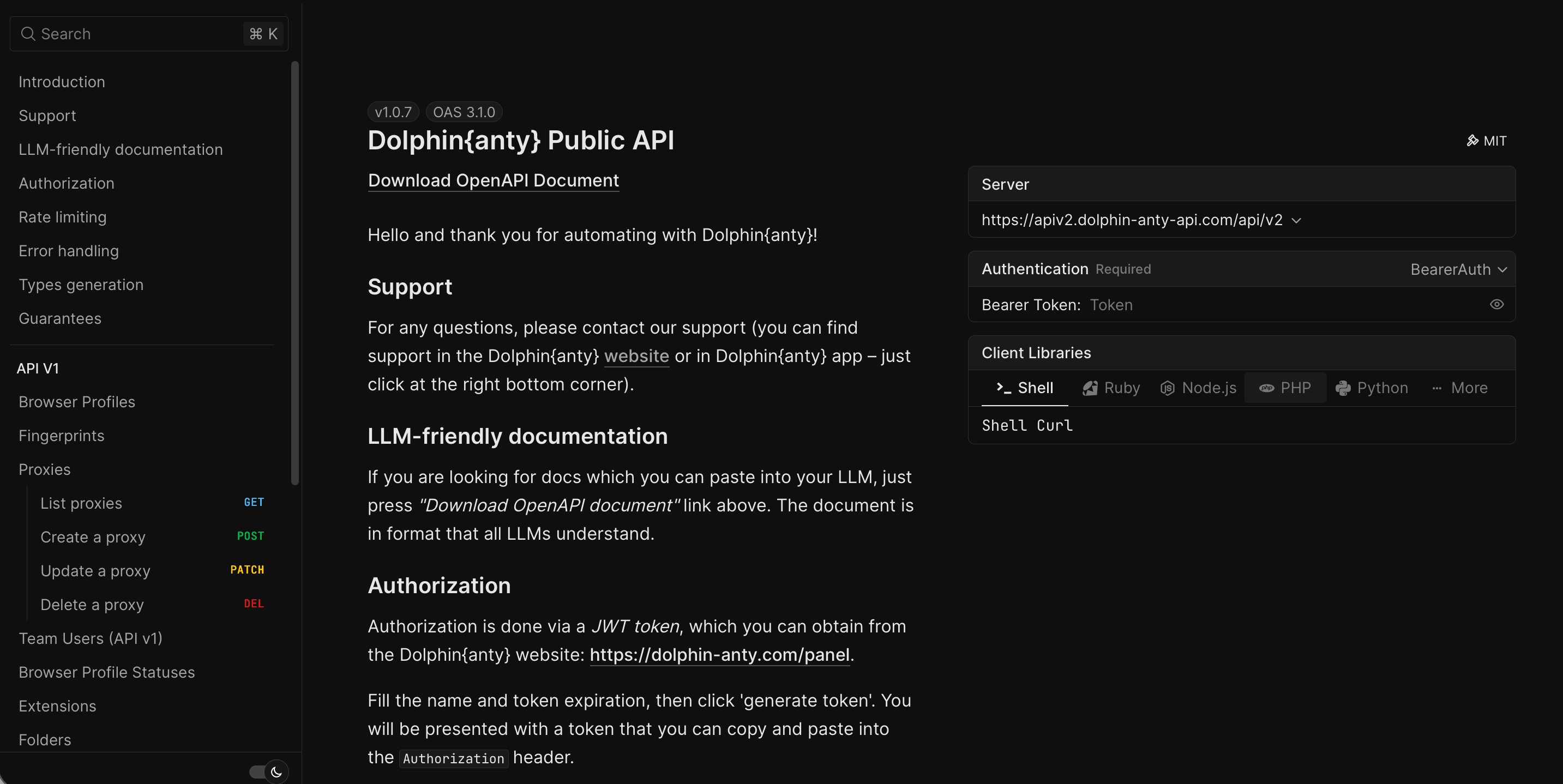
To use the API, the Dolphin Anty application must be running and you need to authenticate with an API token. This option is useful when you want to build your own scripts and automate tasks across multiple profiles.
Teamwork
Dolphin Anty supports teamwork through role based access and profile permissions. This makes it easy to divide tasks among team members and control which accounts each member can access.
There are three main roles:
- Admin has full access to all profiles and members in the team. Admins can view and edit employees' profiles, assign team leads, change roles and passwords, and create or delete user accounts.
- Team Lead manages the employees assigned by the admin. Team leads can view, launch and edit these employees' profiles, but they can't create or delete users or change their passwords.
- Users work with their own profiles and can create and delete them, manage proxies and change settings. They can also be granted access to other team members' profiles with specific permissions.
Dolphin Anty lets team members share or transfer:
- Profiles, with customizable permissions or full ownership transfer.
- Folders, with separately configurable permissions to view and manage the profiles inside.
- Proxies, which can be shared on their own or together with a profile.
- Scenarios, which can be shared as the original version or as a copy.
You can also configure each employee's permissions individually, allowing them to view and launch profiles, change settings, share profiles with others or delete them.
Dolphin Anty Pricing
Dolphin Anty offers several subscription plans for different workloads.
| Plan | Monthly price | Profile limit | Best for |
|---|---|---|---|
| Free | $0 | Up to 3 | Trying the browser and basic use |
| Starter | From $10 | 20 to 60 | Individual users managing a few accounts |
| Base | $89 | Up to 100 | Freelancers and small teams |
| Team | $159 | Up to 300 | Teams managing more accounts |
| Enterprise | From $299 | 1,000 to 50,000 | Large teams and projects |
Additional users can be added to the Base, Team and Enterprise plans for $10, $20 and $25 per month respectively.
Use the promo code NITROSOLVER to get 20% off any plan. Try Dolphin Anty
Conclusion
Dolphin Anty brings together the tools affiliate marketers need to manage multiple accounts: separate browser profiles, proxy settings, account organization, team access and automation features. Used together with NitroSolver, it can simplify both Cloudflare Turnstile challenges and repetitive tasks in ad account management.
Solving Cloudflare Turnstile with Dolphin Anty and NitroSolver
If a Cloudflare Turnstile check appears on a page while automation is running in your Dolphin Anty profiles, the process stops. NitroSolver's Cloudflare Turnstile solver API automates this step, so your script keeps running without interruption.
How it works
- Start your Dolphin Anty profile through the API and connect with Puppeteer, Playwright or Selenium.
- When a Turnstile check appears on the page, get the site's sitekey and the page URL.
- Send this data to the NitroSolver API and receive the solved token.
- Insert the token into the
cf-turnstile-responsefield on the page and continue your workflow.
| Feature | NitroSolver |
|---|---|
| Only successful solves are charged | ✓ |
| Failed and 429 requests are free | ✓ |
| No subscription, balance never expires | ✓ |
| Payment in USDT and TRX | ✓ |
| Works with Selenium, Puppeteer and Playwright | ✓ |
Pricing starts at $0.50 per 1,000 successful requests and goes down to $0.35 on larger plans. See all plans in NitroSolver plans and pricing, and learn why failed requests are free in this article.
Exclusive for Dolphin Anty users: After signing up for NitroSolver, enter the promo code DOLPHIN to get 2,500 free Turnstile solves. Questions? Message @nitrosolver on Telegram.